ThinkNotes

Simple is not easy | 化繁为简,知易行难

0%

Windows Driver - Visual Studio配置

Windows Driver - Visual Studio配置

安装VisualStudio+SDK+WDK环境

全部流程:https://learn.microsoft.com/zh-cn/windows-hardware/drivers/download-the-wdk

注意:WDK安装前要求先安装适配版本的SDK:

https://developer.microsoft.com/en-us/windows/downloads/windows-sdk/

推荐按以上链接在VS安装程序中安装Windows 11 SDK (10.0.26100.0),注意默认选中的不是这个版本,需要手动选择这个版本:
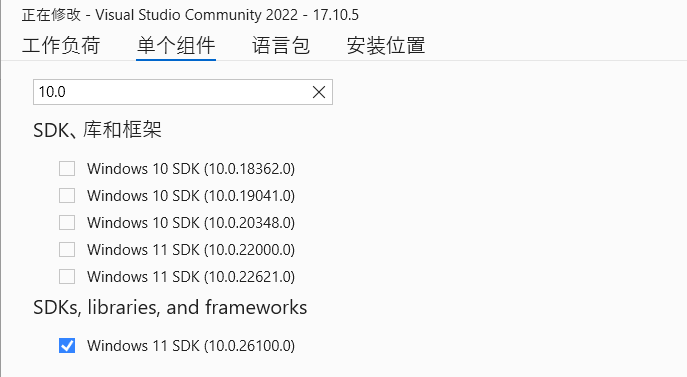
image-20240812164012107

正常安装完SDK和WDK后,创建一个KMDF项目是像这样:如果缺少SDK和Driver Setting这些,说明SDK版本不匹配
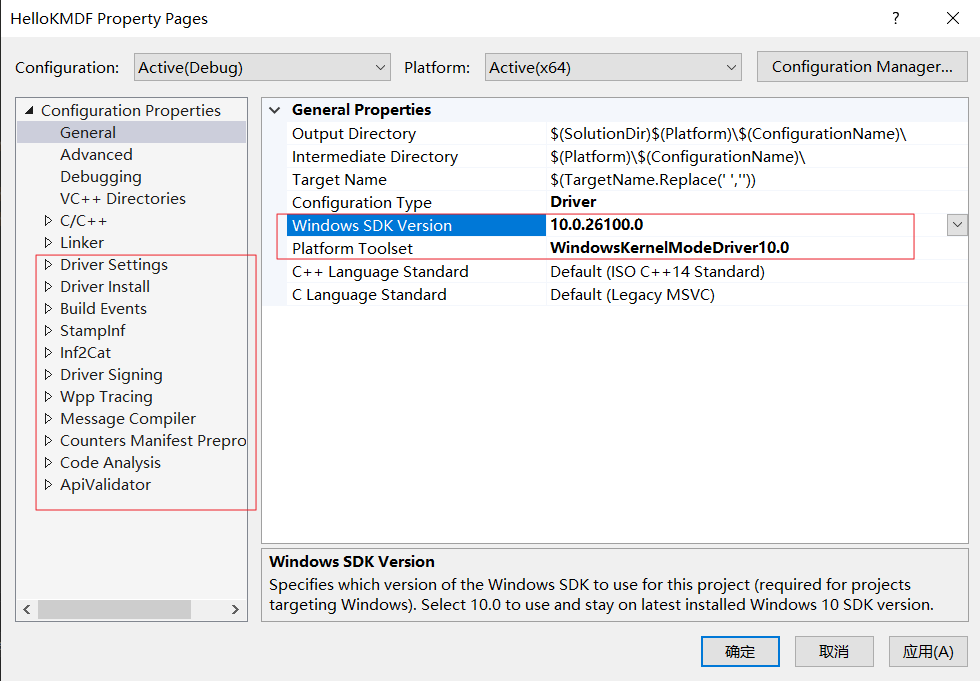
image-20240812164731134

注意:如果在有问题的环境创建了项目编译会报错,在环境配好后该项目也不能用还是会编译报错,应该删除重新建。

VS2019+SDK+WDK环境

TODO

搭建DVL环境(for WHQL)

前置环境:Visual Studio 2019 + SDK 22000 + WDK 22000 + 一些MSVC模块

(Visual Studio 2022 + 24H2 WDK无法正常执行CodeQL(找不到x86\InfVerif.dll),也没有自带SDV,暂时不用VS2022环境)

DVL:driver verification log

https://learn.microsoft.com/zh-cn/windows-hardware/drivers/develop/creating-a-driver-verification-log

The Windows Hardware Certification Program requires a driver verification log (DVL) for driver submissions. The DVL contains a summary of the results from static analysis tools, CodeQL. The DVL doesn’t contain any source code information. Before creating a DVL for your driver, run CodeQL, the code analysis tool, and static driver verifier.

使用VS2019+WDK,WHQL的DVL生成依赖于三项文件:image-20241227160816886
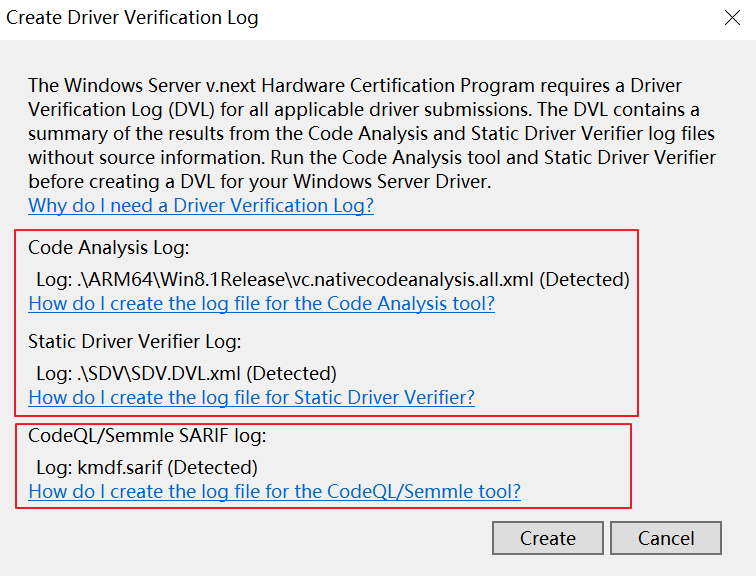
  1. Code Analysis(CA) log: VS2019 + WDK 环境可以生成
  2. Static Driver Verifier(SDV) log:VS2019 + WDK 环境可以生成
  3. CodeQL Sarif log:需要配置CodeQL环境

根据微软的SDV文档(https://learn.microsoft.com/en-us/windows-hardware/drivers/devtest/static-driver-verifier):CodeQL 和SDV似乎是并列关系,都是静态代码分析,因此VS 2022直接不支持SDV,只推荐CodeQL。但不确定WHQL logo driver是不是必须要SDV,因此还是用VS2019环境以确保DVL需要的三种log都能生成。

配置CodeQL环境

详细步骤参考:https://learn.microsoft.com/en-us/windows-hardware/drivers/devtest/static-tools-and-codeql#queries-and-suites

https://github.com/microsoft/Windows-Driver-Developer-Supplemental-Tools

WHQL的OS版本对CodeQL版本的兼容矩阵表:
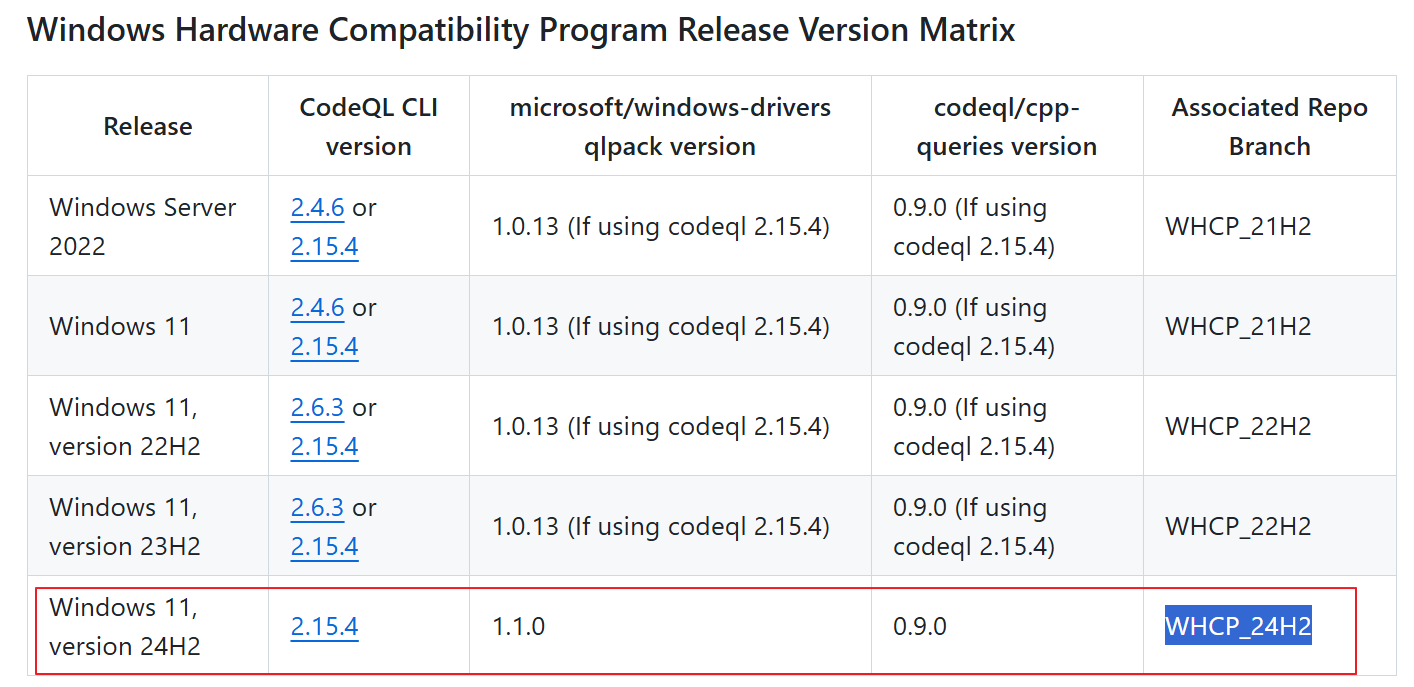
image-20241227103629965

假如要发布24H2的WHQL driver,需要选用红框的版本。按以下几步配置CodeQL环境:

创建CodeQL环境的home目录:

1
C:\> mkdir C:\codeql-home
  1. 下载CodeQL 2.15.4 二进制包

https://github.com/github/codeql-cli-binaries/releases/tag/v2.15.4

  1. 下载Windows Driver Developer Supplemental Tools的WHCP_24H2分支;或者git clone,再checkout到WHCP_24H2

    1
    2
    3
    4
    5
    6
    7
    8
    9
    10
    (1)下载Windows Driver Developer Supplemental Tools的WHCP_24H2分支:
    git clone https://github.com/microsoft/Windows-Driver-Developer-Supplemental-Tools.git
    git branch -a
    git checkout WHCP_24H2
    也可以在github页面切换到WHCP_24H2分支后下载压缩包

    (2)查看分支:
    C:\codeql-home\Windows-Driver-Developer-Supplemental-Tools>git branch
    * WHCP_24H2
    main

    注意,不同的分支可能对应不同的windows_driver_mustfix.qls

  2. 安装CodeQL query packages

    如果不安装CodeQL query packages,直接执行codeql analyze会报package缺失,目前我是手动安装package:VS rebuild多次执行后处理脚本RunCodeQLRebuildQuery.bat,每次报错缺什么版本package就装什么,如下图,直到不再报错。
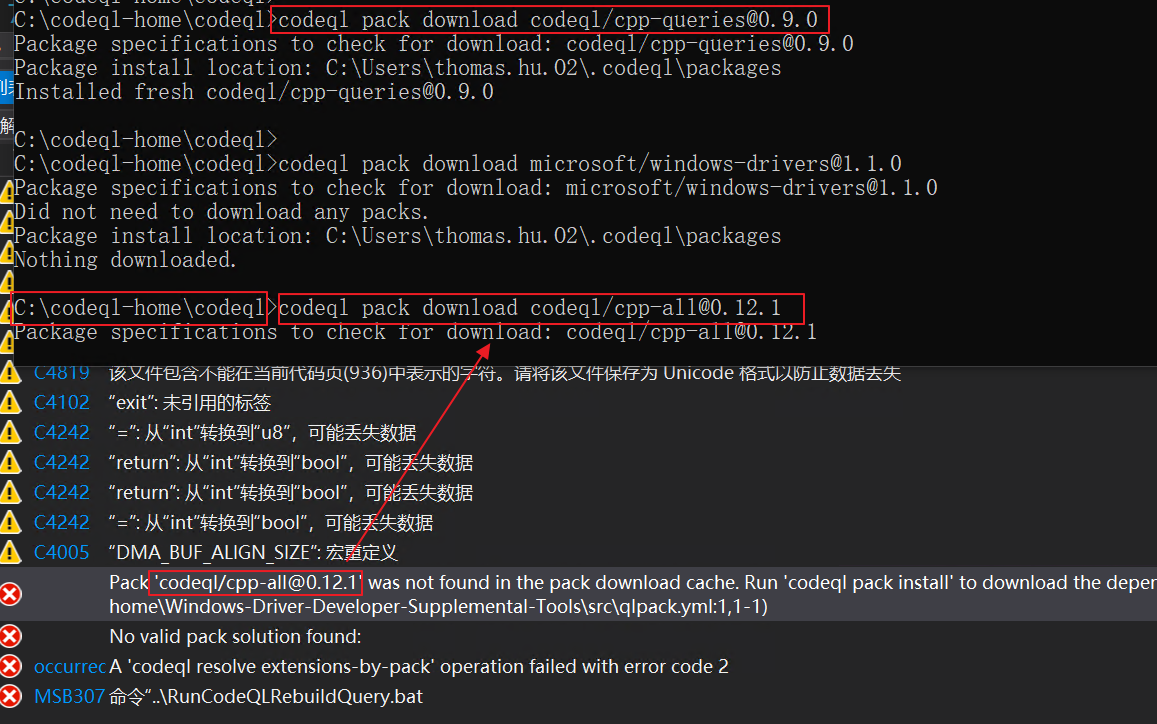
    image-20241227154734283

    安装单个query packages方法:在C:\codeql-home\codeql目录下(包含codeql.exe),执行

    1
    codeql pack download <package>@<version>

    安装所有依赖的query packages过程如下(仅针对CodeQL 2.15.4):

1
2
3
4
5
6
7
8
9
10
11
12
13
14
15
16
17
18
19
20
21
22
23
24
25
26
27
28
29
30
31
32
33
34
35
36
37
38
39
40
41
42
43
44
45
46
Package specifications to check for download: codeql/cpp-queries@0.9.0
Package install location: C:\Users\thomas.hu.O2\.codeql\packages
Installed fresh codeql/cpp-queries@0.9.0

C:\codeql-home\codeql>
C:\codeql-home\codeql>codeql pack download microsoft/windows-drivers@1.1.0
Package specifications to check for download: microsoft/windows-drivers@1.1.0
Did not need to download any packs.
Package install location: C:\Users\thomas.hu.O2\.codeql\packages
Nothing downloaded.

C:\codeql-home\codeql>codeql pack download codeql/cpp-all@0.12.1
Package specifications to check for download: codeql/cpp-all@0.12.1
Package install location: C:\Users\thomas.hu.O2\.codeql\packages
Installed fresh codeql/cpp-all@0.12.1 (library)

C:\codeql-home\codeql>
C:\codeql-home\codeql>codeql pack download codeql/dataflow@0.1.4
Package specifications to check for download: codeql/dataflow@0.1.4
Package install location: C:\Users\thomas.hu.O2\.codeql\packages
Installed fresh codeql/dataflow@0.1.4 (library)

C:\codeql-home\codeql>codeql pack download codeql/rangeanalysis@0.0.3
Package specifications to check for download: codeql/rangeanalysis@0.0.3
Package install location: C:\Users\thomas.hu.O2\.codeql\packages
Installed fresh codeql/rangeanalysis@0.0.3 (library)

C:\codeql-home\codeql>codeql pack download codeql/ssa@0.2.4
Package specifications to check for download: codeql/ssa@0.2.4
Package install location: C:\Users\thomas.hu.O2\.codeql\packages
Installed fresh codeql/ssa@0.2.4 (library)

C:\codeql-home\codeql>codeql pack download codeql/tutorial@0.2.4
Package specifications to check for download: codeql/tutorial@0.2.4
Package install location: C:\Users\thomas.hu.O2\.codeql\packages
Installed fresh codeql/tutorial@0.2.4 (library)

C:\codeql-home\codeql>codeql pack download codeql/util@0.2.4
Package specifications to check for download: codeql/util@0.2.4
Package install location: C:\Users\thomas.hu.O2\.codeql\packages
Installed fresh codeql/util@0.2.4 (library)

C:\codeql-home\codeql>codeql pack download codeql/typetracking@0.2.4
Package specifications to check for download: codeql/typetracking@0.2.4
Package install location: C:\Users\thomas.hu.O2\.codeql\packages
Installed fresh codeql/typetracking@0.2.4 (library)

有时候网络不好下载失败,换个时间多次重试直到安装成功

1
2
3
4
C:\codeql-home\codeql>codeql pack download codeql/cpp-queries@0.9.0
Package specifications to check for download: codeql/cpp-queries@0.9.0
A fatal error occurred: Error downloading blob.
(eventual cause: SocketTimeoutException "Read timed out")

CodeQL生成.sarif

(1) 使用.BAT(参考 https://learn.microsoft.com/en-us/windows-hardware/drivers/devtest/static-tools-and-codeql#queries-and-suites 7. Visual Studio Post-Build Event (Optional))

(2) RunCodeQLRebuildQuery.bat内容如下:

​ 功能:在C:\codeql-home创建空目录databases,再执行codeql create database和codeql analyze database,其中codeql analyze database依赖于前面的CodeQL query packages和Windows Driver Developer Supplemental Tools。最后输出kmdf.sarif。

1
2
3
4
5
6
7
8
9
10
11
12
13
14
15
16
17
18
19
20
21
ECHO ">>> Running CodeQL Security Rule V 1.0 <<<"
ECHO "Current directory:" %cd%

set HOME=C:\codeql-home
set SRC=%cd%

ECHO ">>> Removing previously created rules database <<<"
if exist %HOME%\databases (
rmdir /s/q %HOME%\databases
)
mkdir %HOME%\databases

ECHO ">>> codeql create database <<<"
%HOME%\codeql\codeql database create "%HOME%\databases" -l=cpp -s=%SRC% -c "msbuild %SRC%\bhtpcr.sln /p:Configuration=Win8.1Release /p:Platform=ARM64 /t:rebuild /p:PostBuildEventUseInBuild=false"
::ECHO ">>> codeql analyze database <<<"
::codeql database analyze <path to database> <path to query suite .qls file>
CALL %HOME%\codeql\codeql database analyze --download "%HOME%\databases" "%HOME%\Windows-Driver-Developer-Supplemental-Tools\suites\windows_driver_mustfix.qls" --format=sarifv2.1.0 --output=%HOME%\databases\kmdf.sarif --rerun

ECHO ">>> Loading SARIF Results in Visual Studio <<<"
CALL devenv /Edit %HOME%\databases\kmdf.sarif
SET ERRORLEVEL = 0

(3) 设置项目后处理脚本为RunCodeQLRebuildQuery.bat,并使能,如下图:

这个示例RunCodeQLRebuildQuery.bat位置是.vcxproj的上级目录,也可以放同级目录,不需要加..\
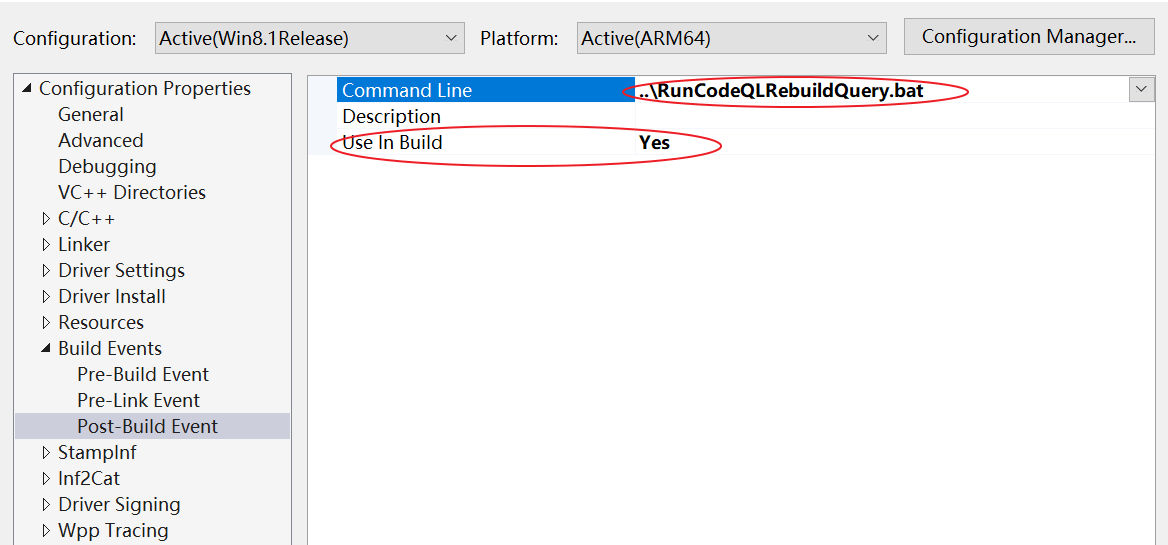
image-20241227152914648

(4)运行项目rebuild,编译后会运行RunCodeQLRebuildQuery.bat,正常结果显示success,并能看到kmdf.sarif文件,如下图。如果有错一般是前面的query依赖库没装好,或者VS+WDK版本不兼容。
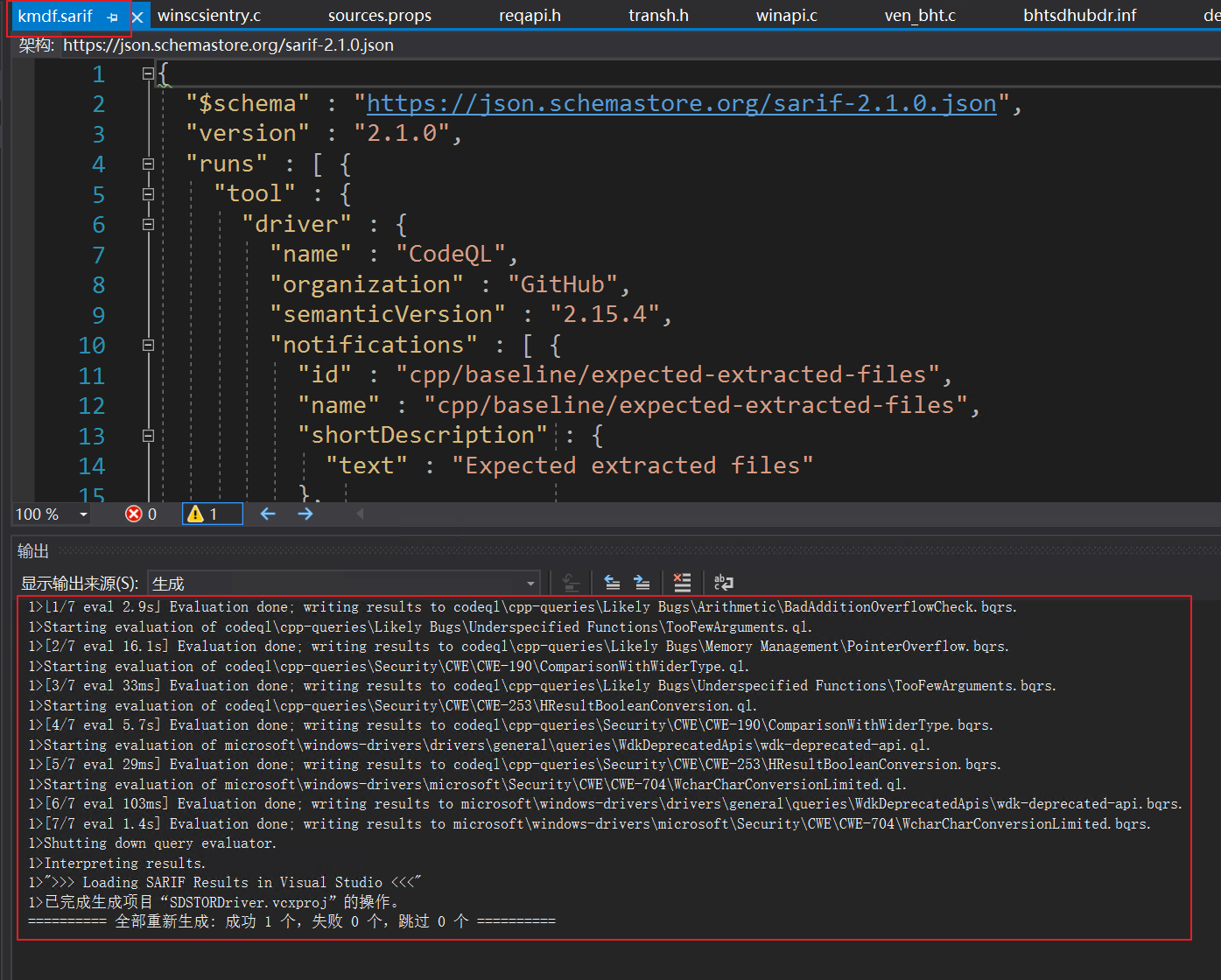
image-20241227154401168

(5) 最后将C:\codeql-home\databases\kmdf.sarif拷贝到Driver的vcproj目录,后面的DVL生成会用到。

(6) RunCodeQLRebuildQuery.bat的调试经验:

如果找不到msbuild,需要将msbuild.exe的路径加到系统PATH,例如(D:\Program Files\Microsoft Visual Studio\2019\Community\MSBuild\Current\Bin)

中文系统上执行msbuild可能输出乱码,CMD中设置中文编码支持:

1
chcp 65001

运行SDV和Code Analysis,生成DVL

(1)生成SDV:VS2019 + WDK 22000安装后自带SDV(Static Driver Verifier)

VS2019 -> Extension -> Driver -> Launch Static Driver Verifier

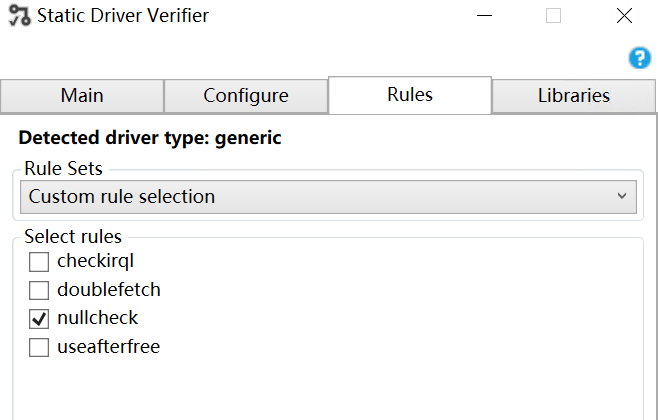
默认选择must fix项,但WHQL的HLK并不需要测所有,也不要求测试项必须通过,因此也可以选择default,或者自定义只测一项nullcheck。
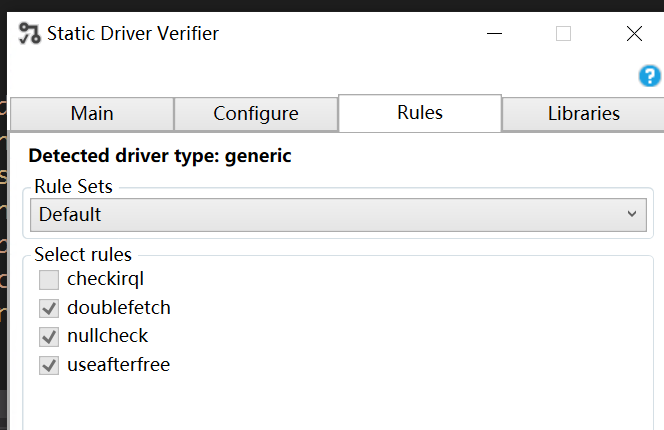
image-20241227160707770

image-20241227160717317

(2)生成CA:VS2019 -> Analyze -> Run code analysis -> Run code analysis on bhtsddr

(3)生成kmdf.sarif:已在项目目录下

(4)生成DVL:VS2019 -> Extension -> Driver -> Create driver verification log

显示三种依赖log都detected,Create有警告无所谓,在项目目录下有DriverName.DVL.XML文件生成
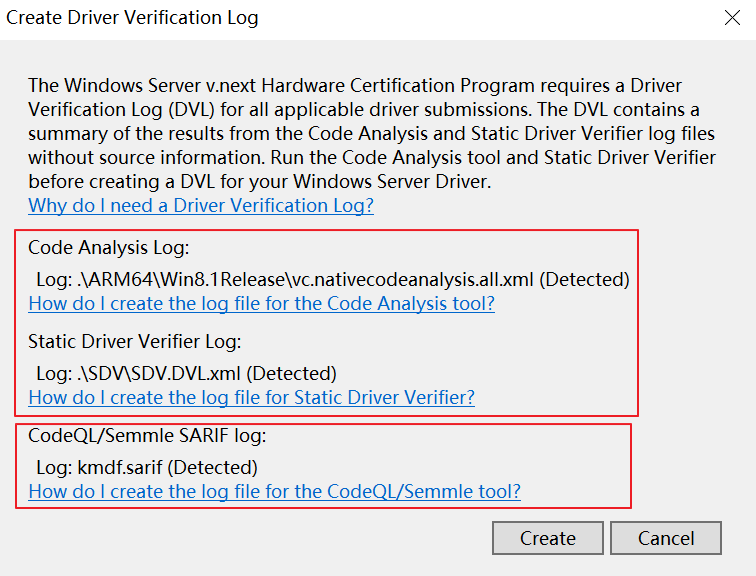
image-20241227163042814

DVL示例内容如下(SDV和CA有fail,但不影响WHQL HLK)

1
2
3
4
5
6
7
8
9
10
11
12
13
14
15
16
17
18
<Data>
<AssessmentScore ScoreName="bhtsdhubdr.arm64.General.XMLTimeStamp" ScoreValue="0" ScoreUnit="12/27/2024 15:54:26"/>
<AssessmentScore ScoreName="bhtsdhubdr.arm64.General.DriverBinary" ScoreValue="0" ScoreUnit="bhtsdhubdr.sys"/>
<AssessmentScore ScoreName="bhtsdhubdr.arm64.General.BinaryTimeStamp" ScoreValue="0" ScoreUnit="01/01/1601 08:00:00"/>
<AssessmentScore ScoreName="bhtsdhubdr.arm64.General.DriverType" ScoreValue="0" ScoreUnit="generic"/>
<AssessmentScore ScoreName="bhtsdhubdr.arm64.General.DriverSize" ScoreValue="0" ScoreUnit="LOC"/>
<AssessmentScore ScoreName="bhtsdhubdr.arm64.General.DriverVersion" ScoreValue="0" ScoreUnit="0"/>
<AssessmentScore ScoreName="bhtsdhubdr.arm64.General.Libs" ScoreValue="0" ScoreUnit="Number of external libraries used"/>
<AssessmentScore ScoreName="bhtsdhubdr.arm64.SDV.Version" ScoreValue="0" ScoreUnit="sdv-2021-03-16"/>
<AssessmentScore ScoreName="bhtsdhubdr.arm64.SDV.ActiveRuleTotal" ScoreValue="4" ScoreUnit="Total rules available"/>
<AssessmentScore ScoreName="bhtsdhubdr.arm64.SDV.Rule.nullcheck" ScoreValue="1" ScoreUnit="SDV_FAILED"/>
<AssessmentScore ScoreName="bhtsdhubdr.arm64.CodeAnalysis.Summary" ScoreValue="2" ScoreUnit="Types of defects seen"/>
<AssessmentScore ScoreName="bhtsdhubdr.arm64.CodeAnalysis.Defect.6385" ScoreValue="1" ScoreUnit="CA_FAILED"/>
<AssessmentScore ScoreName="bhtsdhubdr.arm64.CodeAnalysis.Defect.6001" ScoreValue="1" ScoreUnit="CA_MUSTFIX_FAILED"/>
<AssessmentScore ScoreName="bhtsdhubdr.arm64.Semmle.Summary" ScoreValue="1" ScoreUnit="Types of defects seen"/>
<AssessmentScore ScoreName="bhtsdhubdr.arm64.Semmle.Defect.cpp/comparison-with-wider-type" ScoreValue="0" ScoreUnit="SEMMLE_FAILED"/>
<AssessmentScore ScoreName="bhtsdhubdr.arm64.General.Checksum" ScoreValue="4TYw1CLepWklxyssSBb7x9m/tAtAuZozCUvaOq7od2SAQZx6SRlBzEK1wIlqB34JiwSni1qyOrcXYr3C3mrXTA==" ScoreUnit="DVL Checksum Value"/>
</Data>

WHQL的HLK测试会用到此DVL文件。

代码新项目相关的配置

VisualStudio新项目环境配置

使用VSCode快捷键

工具–>选项->键盘->键盘映射方案选VSCode

WDF项目找不到头文件问题

  1. 找不到<ntddk.h>和<wdf.h>

在项目配置-> C/C++ -> General -> Additional Include Directories -> 加上WDK和WDF的include头文件路径

Ntddk.h contains core Windows kernel definitions for all drivers, while Wdf.h
contains definitions for drivers based on the Windows Driver Framework (WDF).
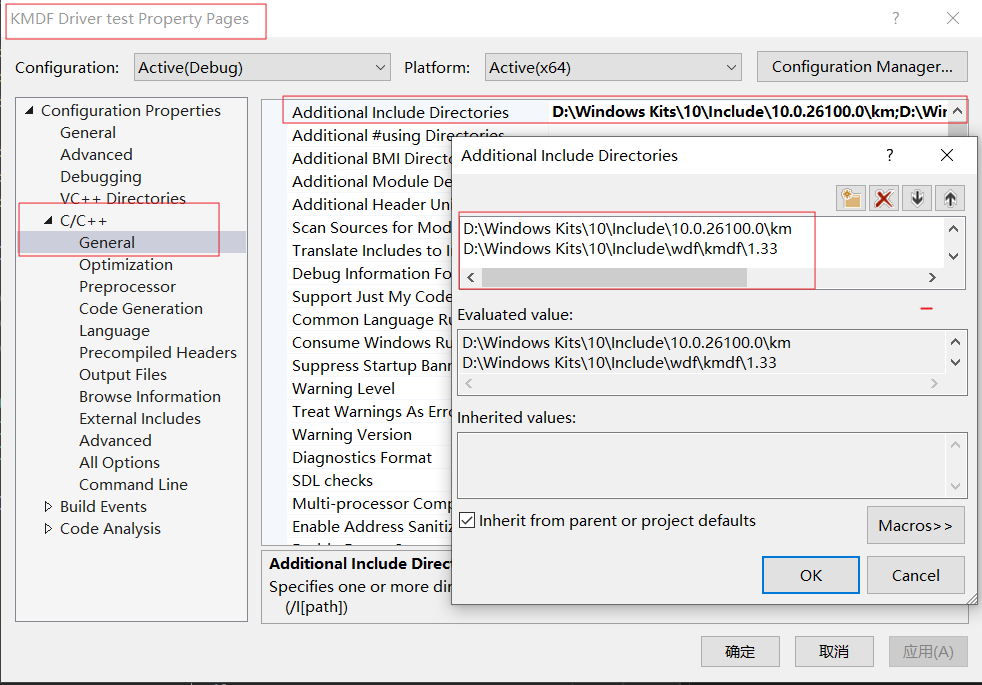
image-20240812104158672

注意WDF的版本,Win11选WDF 1.33,参考:https://learn.microsoft.com/zh-cn/windows-hardware/drivers/wdf/kmdf-version-history

  1. 找不到device.tmh

项目设置 -> WPP Tracing -> 设置 “Run Wpp Tracing” 为 YES

WDF项目找不到链接symbol

https://learn.microsoft.com/en-us/cpp/error-messages/tool-errors/linker-tools-error-lnk2019?view=msvc-170#third-party-library-issues-and-vcpkg

如果是调用第三方库API报此问题,基本上是项目配置没有链接这个库

The object file or library that contains the definition of the symbol isn’t linked

以SDBUS驱动为例,ntddsd.h定义的SdBusSubmitRequest只有declaration,其函数体实现其实是在SDBUS.lib里,用everything搜索此lib(WDK路径),加到项目配置的Link dependence lib(Link -> Input -> Additional Dependence),即可编译通过。

The ntddsd.h header file, which is provided in the Windows Driver Kit (WDK), declares the prototypes for the routines exposed by the SD bus library.

https://learn.microsoft.com/en-us/windows-hardware/drivers/sd/sd-card-driver-stack
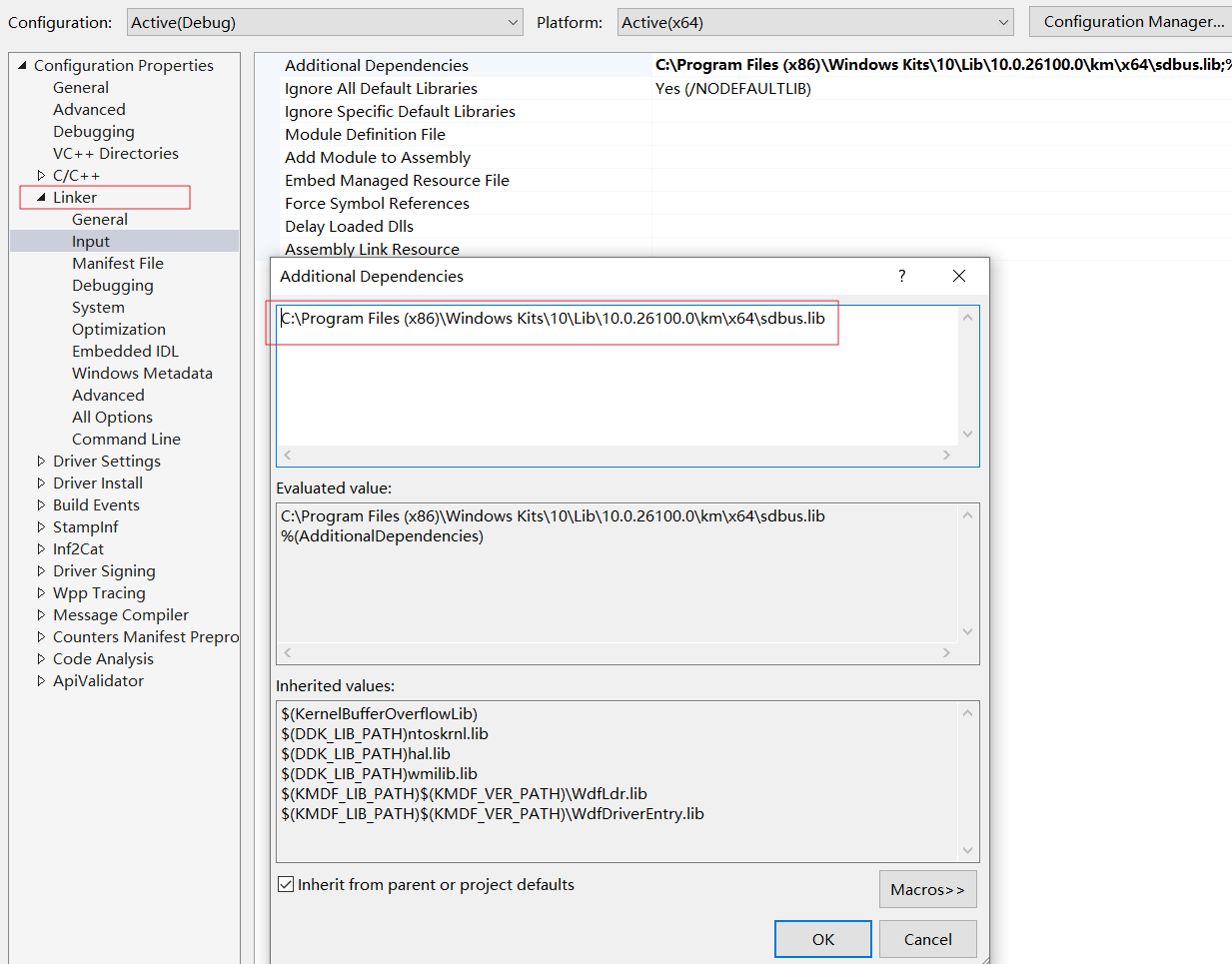
image-20240822195016239

另外一个示例:

RtlStringCbVPrintfA打印函数属于ntstrsafe.h定义,其lib同名,位于WDK的km目录;一般WDF驱动把km和kmdf的.lib都加到项目的linker路径:(Link -> Input -> Additional Dependence)

注意需要指定到.lib文件名,一般是用到哪个lib才链接哪个lib;

1
C:\Program Files (x86)\Windows Kits\10\Lib\10.0.26100.0\km\x64\ntstrsafe.lib

也可以用*匹配所有lib:

1
2
C:\Program Files (x86)\Windows Kits\10\Lib\10.0.26100.0\km\x64\*.lib
C:\Program Files (x86)\Windows Kits\10\Lib\wdf\kmdf\x64\1.33\*.lib

VS Code配置项目包含WDF/WDM头文件

在.vscode的c_cpp_properties.json添加WDF/WDM所在的头文件定义(即前面VisualStudio添加的Additional Include Directories),在WDK目录,用everything搜索wdf.h和wdm.h所在的目录:

1
2
3
4
5
"includePath": [
"${workspaceFolder}/**",
"C:\\Program Files (x86)\\Windows Kits\\10\\Include\\wdf\\kmdf\\1.15",
"C:\\Program Files (x86)\\Windows Kits\\10\\Include\\10.0.26100.0\\km",
],

注意上图windows路径需要将单斜杠全局替换成双斜杠,空格不需要加反斜杠

替换完毕查看是否能跳转,例如单击WdfIoQueueCreate能跳转到wdfio.h的函数体定义:

1
2
3
4
5
6
7
8
9
10
11
12
13
14
15
16
17
_Must_inspect_result_
_IRQL_requires_max_(DISPATCH_LEVEL)
NTSTATUS
FORCEINLINE
WdfIoQueueCreate(
_In_
WDFDEVICE Device,
_In_
PWDF_IO_QUEUE_CONFIG Config,
_In_opt_
PWDF_OBJECT_ATTRIBUTES QueueAttributes,
_Out_opt_
WDFQUEUE* Queue
)
{
return ((PFN_WDFIOQUEUECREATE) WdfFunctions[WdfIoQueueCreateTableIndex])(WdfDriverGlobals, Device, Config, QueueAttributes, Queue);
}

代码中支持中文编码

Warning C4819 The file contains a character that cannot be represented in the current code page (936). Save the file in Unicode format to prevent data loss

这个警告是关于代码页(code page)编码的问题。警告 C4819 表示文件中包含无法在当前代码页(936,即GBK编码)中表示的字符。

解决这个问题有以下几种方法:

  1. 最推荐的方法是将文件保存为 UTF-8 with BOM 格式:
  • 在 Visual Studio 中打开文件
  • 点击”文件” -> “高级保存选项”
  • 在编码下拉框中选择”UTF-8 with signature (Codepage 65001)”
  • 点击保存
  1. 如果需要保持当前编码,可以在文件开头添加编码指示:
1
2
#pragma code_page(65001)  // 使用 UTF-8 编码
// ... 其余代码 ...
  1. 也可以在项目设置中修改:
  • 右键项目 -> 属性
  • C/C++ -> 命令行
  • 在”其他选项”中添加 /utf-8

尝试过最有效的是方法3,但需要注意 Release和Debug的项目配置是独立的,需要配置两次/utf-8